Hi Captains! 👋
Many of you will remember the excellent Virtual FMC apps we had back in the Prepar3D days—my favorite for years. Since the move to MSFS 2020, several web-based CDU solutions have appeared. While they work well, I’ve always missed the responsiveness of a true native app. Web apps are convenient, but native apps are simply faster, smoother, and more reliable.
So, I decided to build one myself!
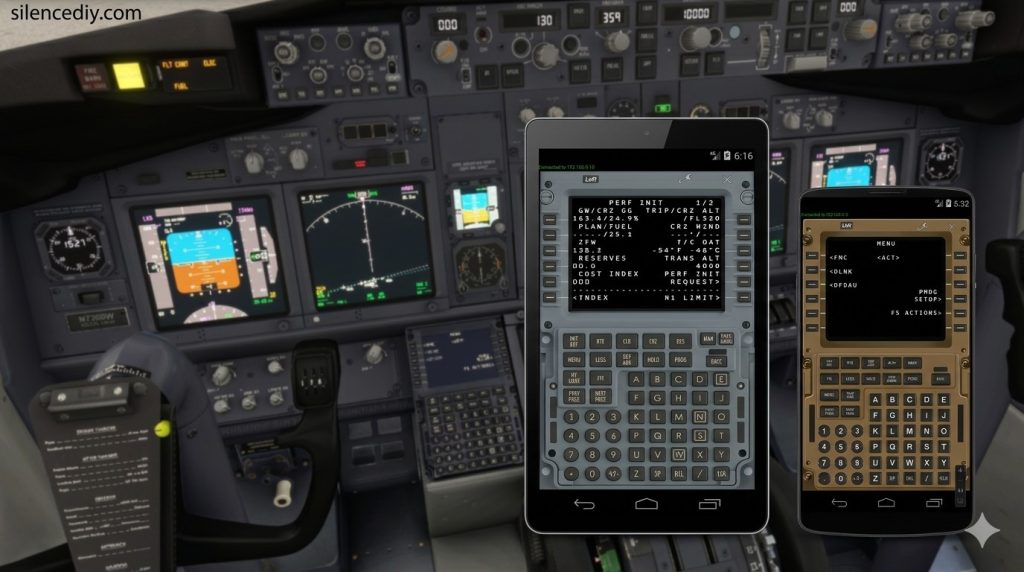
FlightPadFMC is a fully native Android application that turns your tablet into a PMDG 777/737 CDU. No browser, no complex web server, and zero lag. It’s a clean, high-performance experience designed to feel like the real hardware sitting on your flight deck.
A Note on iOS: I know many would love an iOS version. Unfortunately, I don’t own a Mac to build and sign iOS apps, so I cannot provide one at this time. However, I am releasing the project as Open Source on GitHub very soon. The core logic is clean and well-structured, so if anyone in the community has a Mac and the skills to port it, I would welcome the collaboration!
✈️ Features
Real-Time CDU Display: Streams live data from the PMDG 777/737 via SimConnect, including all text, colors, and formatting.
Full Tactical Input: Every LSK, function key, and alphanumeric button is fully supported.
EXEC LED: Real-time annunciator support—the EXEC light glows green on your tablet exactly when it does in the cockpit.
Physical Feedback: Optional button click sounds and haptic vibration for a tactile feel.
Built for Stability: built-in crash logging for easy troubleshooting.
💻 Requirements
Android App:
Android 4.4 (KitKat) through Android 14+ (Tested on v4.4 and v12).
WiFi connection to the same local network as your Sim PC.
Windows Server:
Windows 10/11.
Microsoft Flight Simulator 2020.
PMDG 777 or 737 (any variant).
PMDG SDK Enabled: You must enable data broadcasting in your aircraft options files (see Setup below).
⚙️ How it Works
MSFS + PMDG exports data via the SimConnect SDK.
FlightPadFMC Server (Windows) reads the screen data and LED states.
WebSocket Streaming sends that data over your home WiFi to your tablet.
Button Presses on the tablet are sent back to the server and injected directly into the aircraft as PMDG SDK events.
🔧 Setup Instructions
Keep in mind that this is an Alpha version. I would greatly appreciate any bug reports or feedback you can provide to help improve the app!
IMPORTANT: Please read the Setup Instructions carefully to ensure a successful connection.
- Enable the PMDG SDK
You must tell the PMDG aircraft to share its data with external apps. Locate your 777_Options.ini and 737_Options.ini files.
Typical path (MS Store): %LOCALAPPDATA%\Packages\Microsoft.FlightSimulator_8wekyb3d8bbwe\LocalState\packages\pmdg-aircraft-77w\work\
Typical path (Steam): %APPDATA%\Microsoft Flight Simulator\Packages\pmdg-aircraft-77w\work\
Open the .ini file and ensure these lines are set under the [SDK] section:
[SDK]
EnableDataBroadcast=1
EnableCDUBroadcast.0=1
EnableCDUBroadcast.1=1
- Run the Server
Launch FlightPadFMC_Server.exe on your flight simulation PC. When prompted by Windows, ensure you Allow Access through your firewall. If the firewall is not configured correctly, the Android app will be unable to communicate with the server. Navigate to File > Settings to select your aircraft version (737 or 777). (And MSFS2020 or MSFS2024 This feature is currently in development and will be included in a future update.) - Install the App
Install the APK on your Android tablet. Ensure the tablet and PC are on the same WiFi network.
If the app does not connect automatically, go to Settings and manually enter the Server IP (the IP address of the PC where FlightPadFMC_Server.exe is running).
Current support is limited to the Captain’s (Left-side) CDU. Support for the Co-pilot and Center CDUs is planned for a future update.
Important Connection Note: If you launch the Android app before starting the Windows server, the app will make 5 connection attempts before stopping. If it fails to connect, simply minimize the app and re-open it (or restart it) to trigger a new search for the server. If you switch from the PMDG 737 to the PMDG 777 (or vice versa), you must Force Stop the Android app in your device settings. This ensures the connection is completely reset for the new aircraft’s data structure. In future releases, I plan to implement separate network ports for the 777 and 737 to prevent connection conflicts. - Fly!
Launch the app on your tablet. Load your PMDG 777 or 737 in MSFS and enjoy your new physical CDU!
Feedback & Support:
I hope you enjoy using this as much as I enjoyed building it. If you encounter any issues or have suggestions for new features.
Compatibility Note: Tested exclusively on MSFS 2020. Focus is currently on the PMDG 777/737. Support for MSFS 2024 and other aircraft (Airbus/FBW/etc.) is planned for future updates once the core version is stable.
Known Issues:
PMDG 737: The EXEC LED is currently non-functional. This is a known limitation and will be addressed in a future update.